Everything between a period closing and a return being ready
What CA ClientOps does, part by part. Every plan has all of it; plans differ only in how many clients and people they cover.
Collection calendar
Every checklist opens from the statutory calendar, so nobody has to remember which clients are due for what.
- Built in: GST monthly (GSTR-1 and GSTR-3B), GST quarterly under QRMP with the monthly PMT-06, TDS returns (24Q and 26Q) and monthly challans, advance tax, ITR for individuals, businesses and audit cases, the tax audit report, ROC annual filing (AOC-4 and MGT-7), LLP Form 11 and Form 8, PF and ESI.
- Two dates for every period, never merged: the date the law sets, and your firm's cut-off for client documents, counted back over working days.
- Maharashtra public holidays and your own office holidays are skipped when the cut-off is counted.
- When the government extends a due date, the extension is applied to open checklists: the statutory date moves, and the cut-off moves with it when it needs to.
- Advance tax collection opens before each instalment; annual filings open when the financial year closes.
Checklists
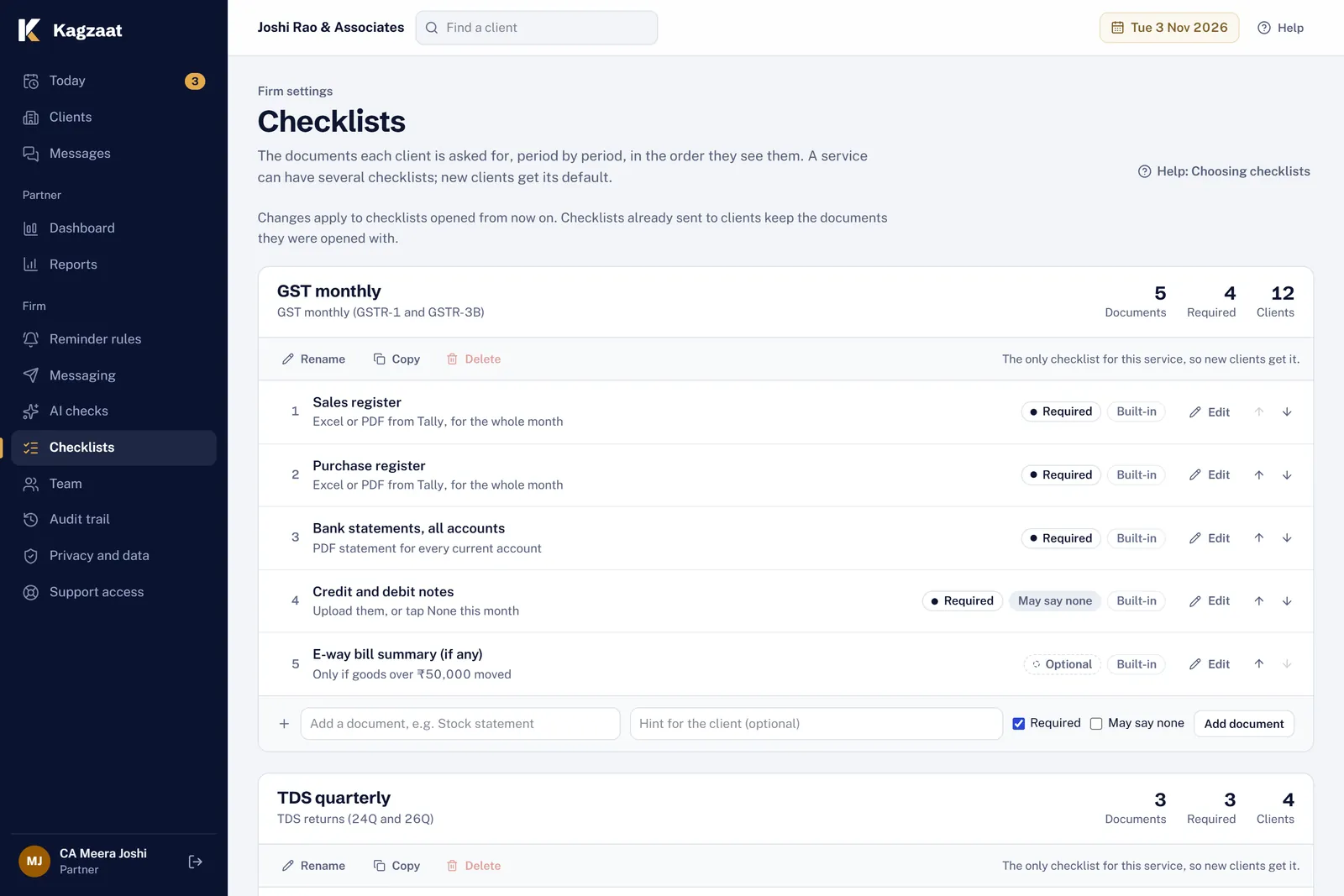
Say what you need from each kind of client once. Each period's checklist is made from it.
- Ready-made checklists for every service in the calendar, which you can change: add, rename, reorder or remove documents.
- Mark each document required or optional, and allow "None this period" where a client may have nothing to send.
- Write a hint for the client, such as "Excel or PDF from Tally, for the whole month".
- Several checklists per service, with one as the default. Skip or add documents for a single client.
- Changes apply to checklists opened from then on; what is already open stays as it was.
Reminders and WhatsApp
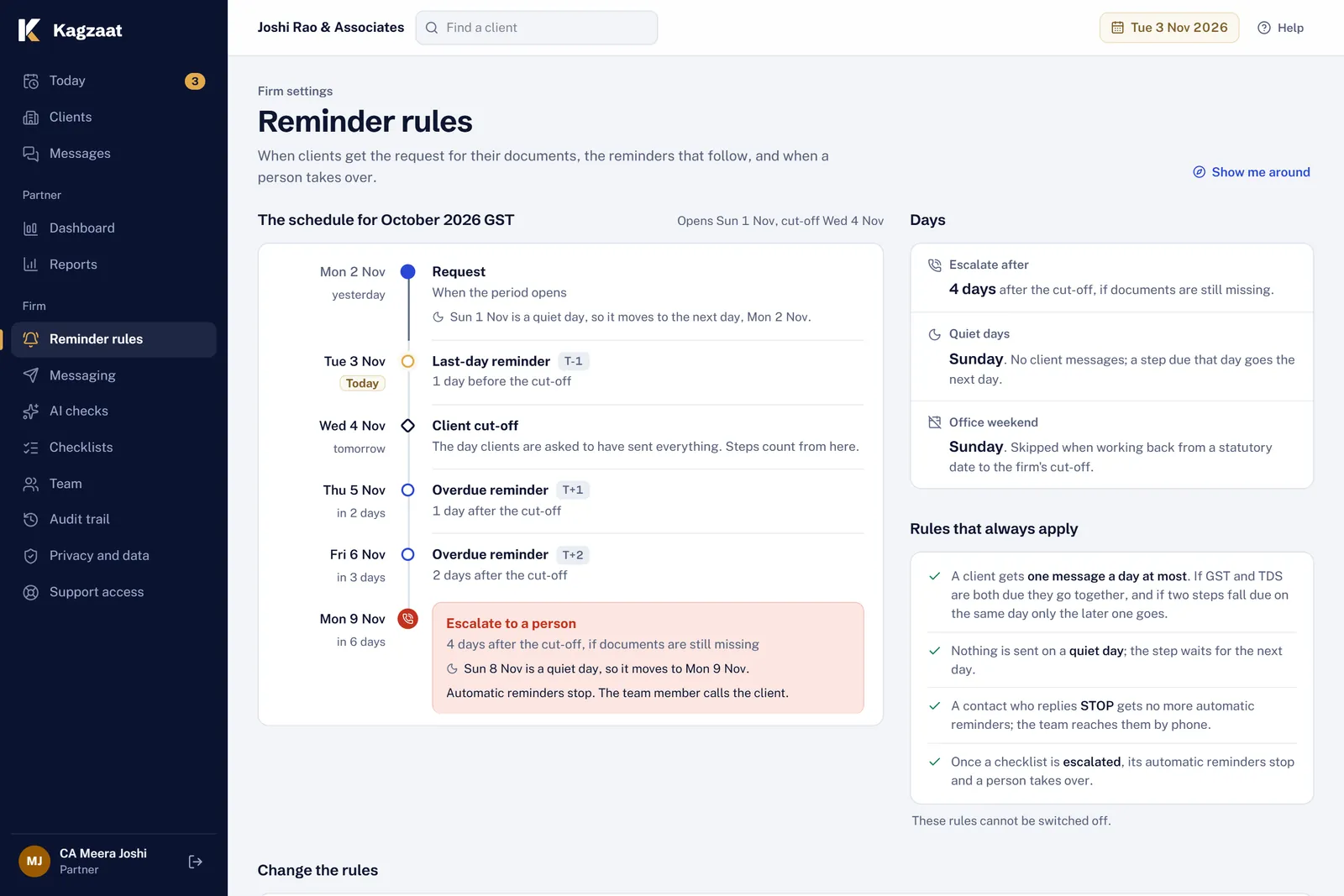
The right message on the right day, in the language the client reads, and never a pile of them.
- WhatsApp messages in English, Hindi or Marathi, chosen per contact. Email in English.
- Today, WhatsApp goes from your firm's own number. The app prepares each message with the upload link; a person taps Send on WhatsApp and WhatsApp opens with the text ready. Clients see your number and their replies come to you. Email goes out by itself.
- Set when the request and each reminder go, relative to your cut-off, which day of the week stays quiet, and how many days after the cut-off a client is escalated for a call.
- Rules that always hold: one message a day per client at most (GST and TDS due together go in one), nothing on the quiet day, nothing between 9 pm and 8 am, and only the latest reminder after a missed day.
- Each reminder lists only what is still missing. A client who replies STOP gets no more automatic reminders.
- A client with no way to reach them is flagged for a person instead of being skipped quietly.
Client upload page and checks
A page on the client's phone, under your firm's name, with one button for each document.
- No app and no password: the link in the message opens it. Links work for 14 days; a phone stays signed in for 30.
- Document names also shown in Hindi or Marathi for clients who read those.
- PDFs, photos (JPG or PNG) and spreadsheets (Excel or CSV), up to 25 MB a file.
- Each file is checked as it arrives: a renamed file whose contents do not match its type is refused, and the same file sent twice is not stored again.
- A file whose name points to another month is kept and flagged for your team, never refused: a person decides.
- A receipt for every upload, and a short privacy notice before the first one. Files sent earlier open only after a one-time code.
- A status link per client, if you want one: what is pending, received or not needed, without signing in.
Review and approval
The work moves from the client to your team to a partner, and everyone can see where it is.
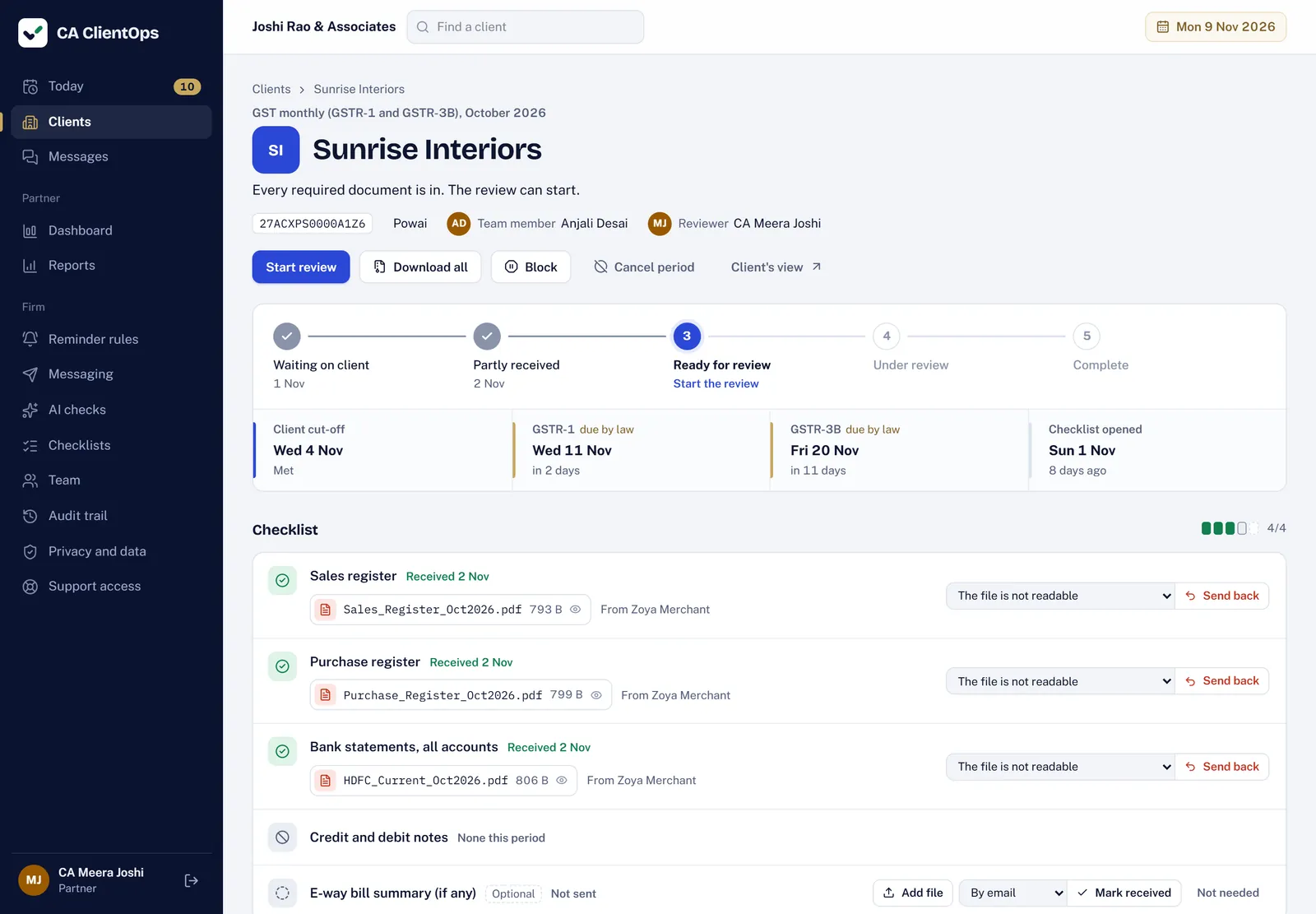
- Statuses are worked out from the documents: waiting on client, partly received, ready for review. People set only under review and complete.
- A partner or manager approves the review. Review can start only when every required document is in.
- Send a file back with a reason the client understands (another month, not readable, pages missing, not what was asked); the client is asked again.
- Mark a document received or not needed, or upload it on the client's behalf.
- Block a checklist with a reason while you wait on a GST portal login or a query: reminders pause. Cancel a period a client does not need.
- Download every file for a checklist in one zip.
Today, dashboard and reports
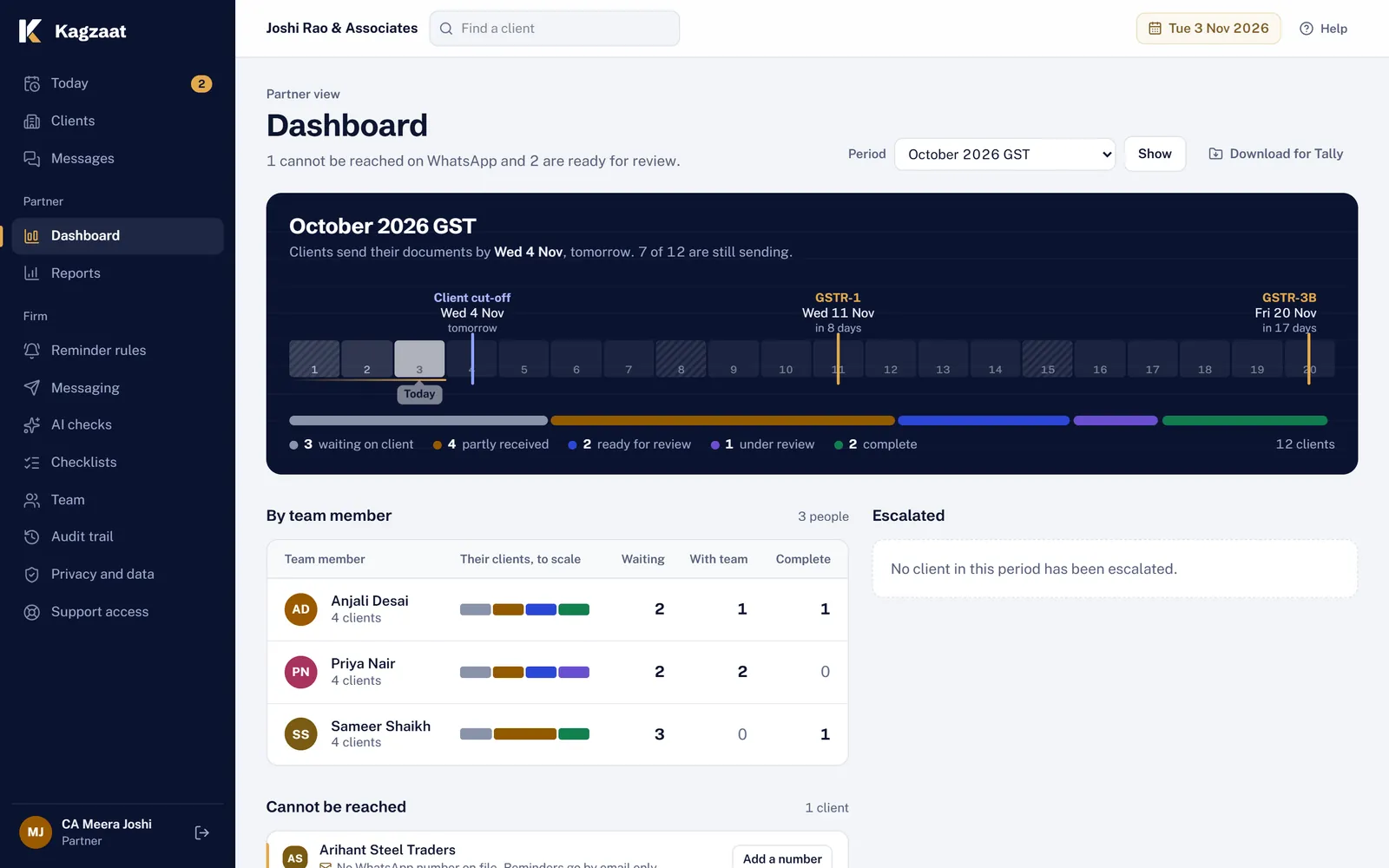
One list for the morning, one picture of the period, and the numbers a partner asks about.
- Today: the period's deadline track and only what needs a person: reviews to approve, files flagged by the checks, clients to call. Tick several rows to start reviews, send a reminder now, reassign or block.
- Dashboard: clients by team member, clients who cannot be reached, clients escalated for a call, and uploads by day around the cut-off.
- Reports for partners and managers: median turnaround by team member and by client, clients who are late again and again, and follow-ups per completed checklist. Each table downloads as CSV.
- A morning email on days something needs a person, and a Monday email to partners about last week.
- Download a period's files for your accounting work: folders by client and document with a manifest. It is a set of files, not a Tally import.
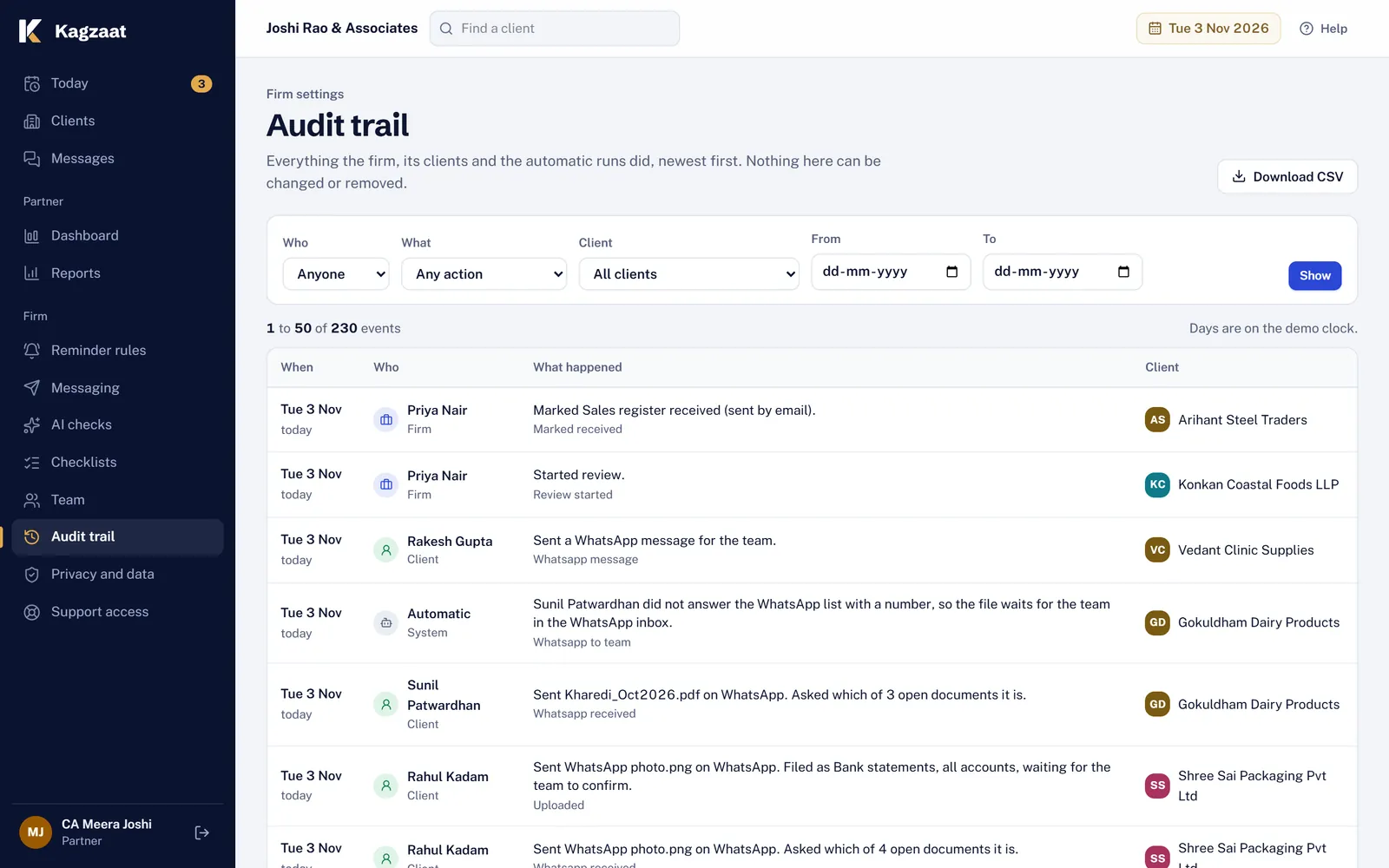
Audit trail and exports
Who did what, and when, for every client. Your data leaves with you whenever you ask.
- Every change leaves a line: the day, the time, who did it and what happened. Nobody in the app can change or remove a line.
- Filter by person, action, client and dates, and download the trail as CSV.
- A partner can export the whole firm in one zip: clients, contacts, checklists, messages, the audit trail and every stored file, in folders by client and period.
Team, roles and two-factor sign-in
Partners run the firm's settings, managers see the whole firm, staff start with their own clients.
- Partners change settings and the team, and approve reviews. Managers see the whole firm and approve reviews. Staff see their own clients first.
- Partners sign in with two-factor (an authenticator app, with recovery codes). Managers and staff can turn it on for themselves.
- Each device stays signed in for up to 12 hours. Everyone can see their signed-in devices and sign any of them out.
- Deactivate someone who has left: they cannot sign in, and their history stays.
- Support access is a partner's choice: grant it for 24 hours, 72 hours or 7 days, end it at any time. Support never sees client names, documents or message text.
AI checks, if you want them
An extra pair of eyes on PDFs and photos. Off unless a partner turns it on.
- Suggests which document a file is, the period it covers and whether it is readable.
- A person at the firm accepts or dismisses every suggestion. Clients never see them.
- The file goes to Anthropic's API with the checklist item names and the period; the client's name, GSTIN, phone, email and the file name are not sent. Anthropic processes it in the United States.
- Turning it on adds a section to the privacy notice your clients see.
Try it on next month's GST.
14 days free on the Growth plan's limits. A guided setup brings in your team, clients and checklists, and nothing goes to a client until you switch reminders on.